
1
Kostenloses Konto erstellen
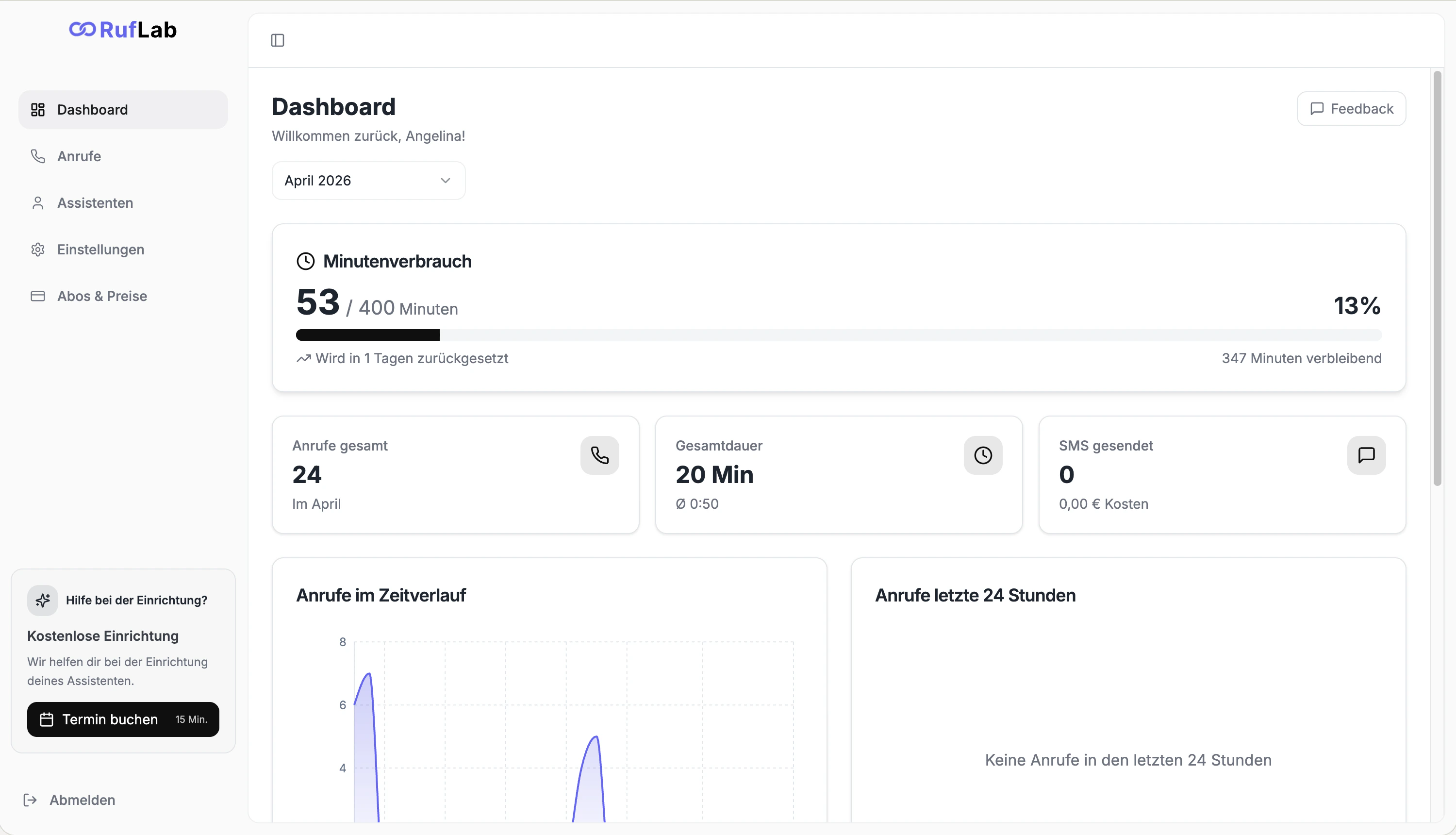
Geh auf app.ruflab.com und registriere dich für die kostenlose Testphase. Keine Kreditkarte nötig. Du hast 14 Tage lang vollen Zugriff auf alle Funktionen und kannst den Assistenten mit echten Anrufen testen, bevor du dich für einen Tarif entscheidest.
2
Assistenten erstellen
Du gibst drei Dinge ein:
- Branche: Wähle die Branche deines Betriebs, zum Beispiel Handwerk, Medizin oder Immobilien
- Anwendungsfall: Wähle, wofür der Assistent hauptsächlich eingesetzt wird, zum Beispiel Terminbuchung, Anrufannahme oder Kundensupport
- Name: Gib dem Assistenten einen Namen, zum Beispiel “Nina” oder “RufLab-Assistent”
3
Stimme & Ton wählen
Öffne den Bereich Stimme & Ton und wähle eine Stimme, die zu deinem Betrieb passt.Du kannst:
- Aus professionellen deutschen Stimmen wählen
- Den Begrüßungstext festlegen, den Anrufer beim ersten Satz hören
- Den Gesprächsstil einstellen, formell, freundlich oder branchenspezifisch
- Die Standardsprache festlegen (über 30 Sprachen verfügbar)
4
Telefonnummer verbinden
Du hast zwei Möglichkeiten, RufLab mit deiner Telefonie zu verbinden:Option A: Bestehende Nummer weiterleiten Richte eine Anrufweiterleitung von deiner aktuellen Nummer ein, sodass Anrufe an RufLab weitergeleitet werden. Du behältst deine gewohnte Nummer, Kunden merken keinen Unterschied. Das Dashboard stellt dir die passenden Weiterleitungsanweisungen für deinen Anbieter bereit.Option B: Neue RufLab-Nummer nutzen Fordere direkt im Dashboard eine dedizierte Nummer an. Du kannst diese Nummer als Hauptnummer oder als Überlaufnummer verwenden.Beide Optionen sind in wenigen Minuten eingerichtet.
5
Kalender verbinden (empfohlen)
Wenn dein Assistent automatisch Termine buchen soll, verbinde deinen cal.com-Kalender im Bereich Fähigkeiten.Nach der Verbindung prüft RufLab deine Verfügbarkeit in Echtzeit und trägt Termine direkt ein. Anrufer erhalten eine Bestätigung per SMS oder E-Mail.Du kannst diesen Schritt überspringen und den Kalender später verbinden, falls Terminbuchung nicht deine erste Priorität ist.
6
Testanruf machen
Bevor du live gehst, ruf deine RufLab-Nummer von einem beliebigen Telefon an. Teste ein realistisches Szenario, eine typische Kundenfrage, eine Terminbuchung oder eine Weiterleitungsregel.
7
Live gehen
Wenn der Testanruf gut verlaufen ist, aktiviere deinen Assistenten im Dashboard. Ab diesem Moment übernimmt RufLab automatisch jeden eingehenden Anruf.